User guide
Everything you need for the first afternoon with ygd-editor, in plain words. Ten minutes to read, and you can come back to any section from the list.
The idea in one minute
A git worktree is a second folder for the same repository, checked out on another branch. Instead of switching branches in one folder — and stashing, rebuilding and losing your place every time — you keep one folder per task.
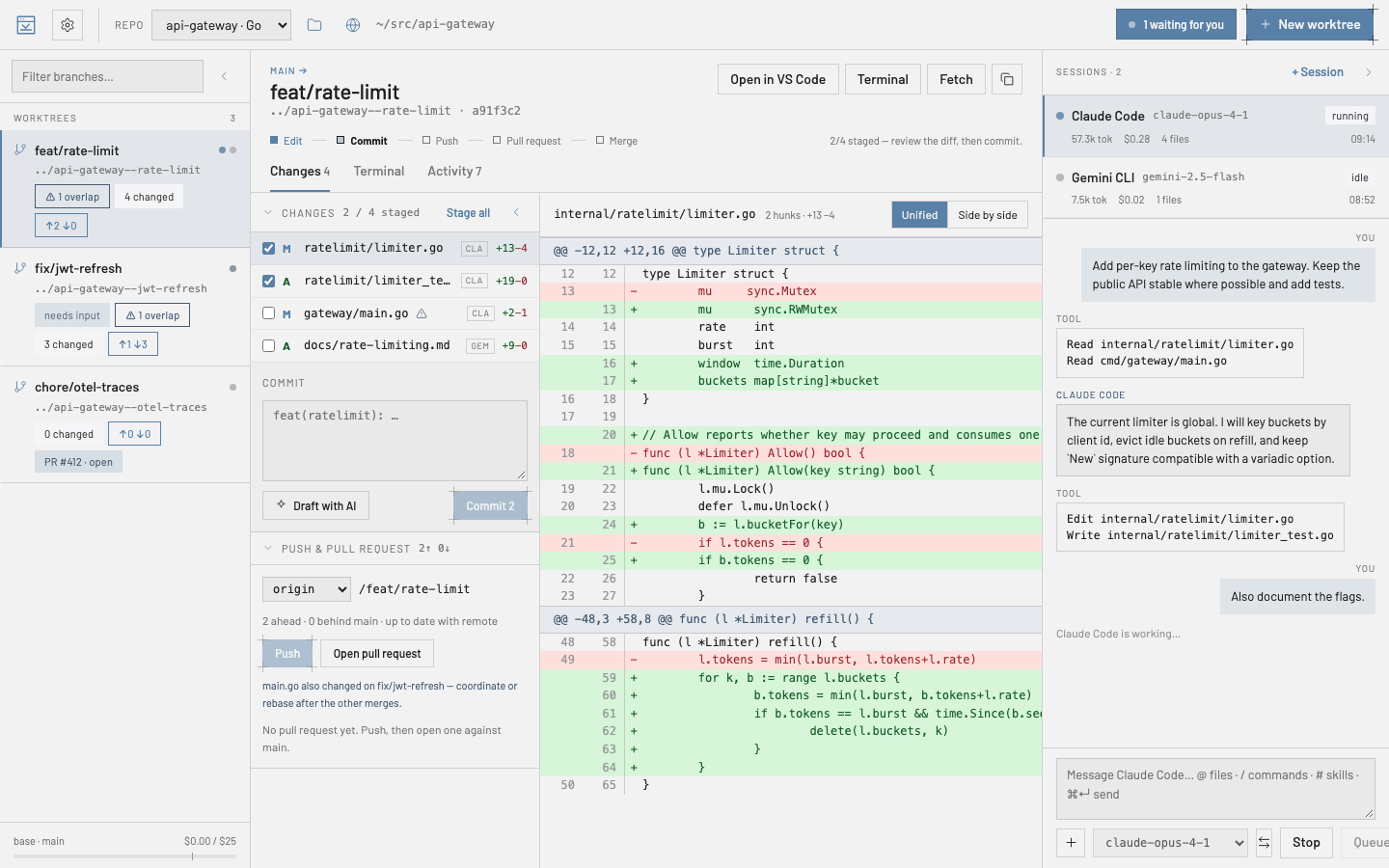
ygd-editor is built around that: the left panel lists your worktrees, the middle shows what changed in the one you picked, and the right runs an AI agent inside it. Two agents on two tasks work in two folders and never collide. When one is waiting for an answer, the header inbox tells you.
Your first ten minutes
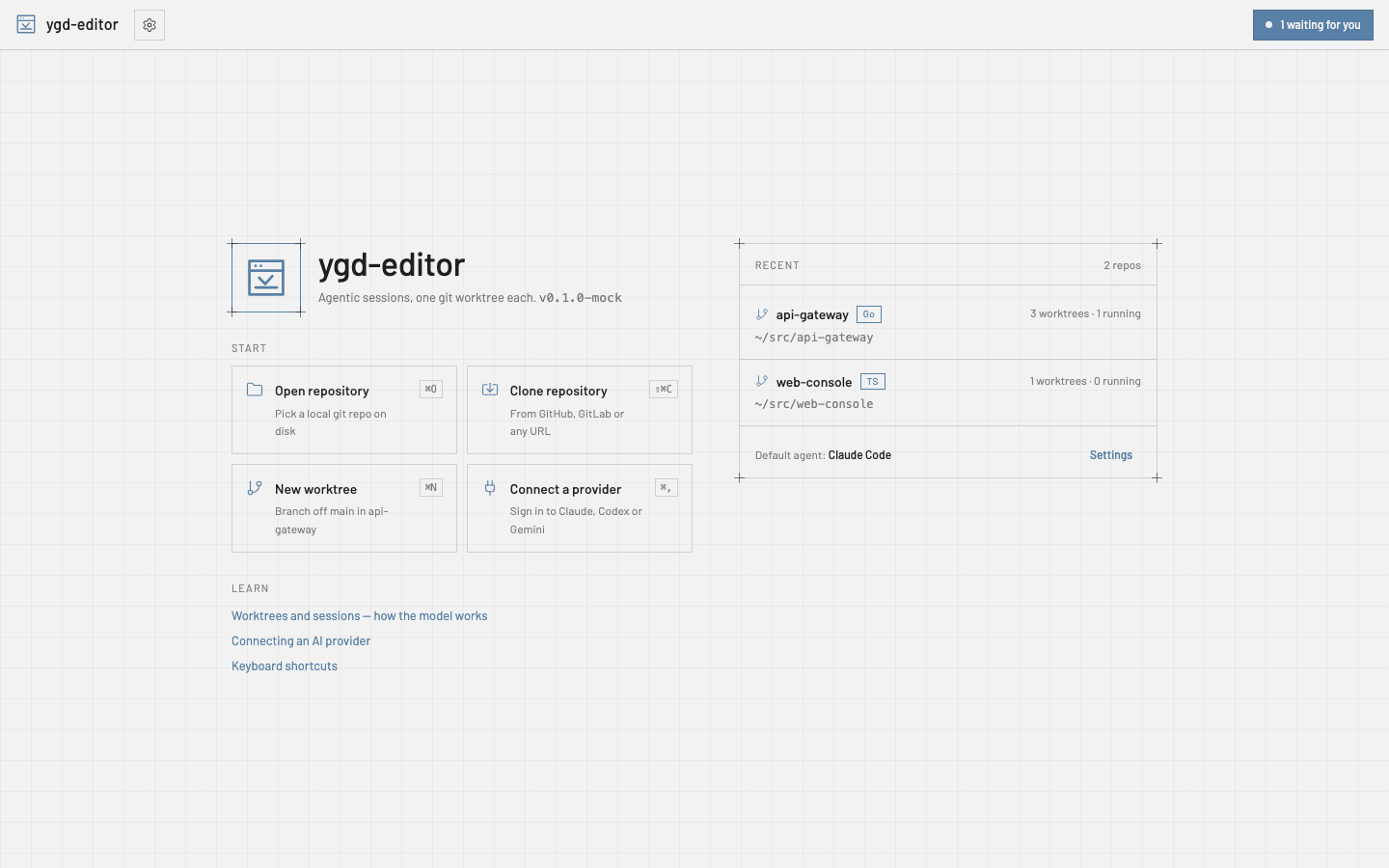
On a fresh install the start page shows a Get set up checklist: git, an AI provider, a repository, a first worktree and a first session. Each step has the button that does it and ticks itself when it is done; Hide this checklist puts it away for good. Here are the same steps in more words.
- Open a repository. On the start page choose Open repository and pick a folder that already has git in it, or Clone repository with a GitHub, GitLab or any git URL. Recent repositories stay on the start page.
- Create a worktree. New worktree (⌘N) suggests a branch name from the task and a folder to put it in; both are yours to rename to whatever convention you use. Git does not allow spaces in a branch name, so they become dashes and the dialog shows you the result before creating anything. Where worktrees go on disk, and an optional suggested prefix, are Settings › Git.
- Start a session. + Session in the right panel picks an agent and a model; the default agent is Settings › Default agent. Type what you want in the composer.
@attaches files or context such as the current diff,/runs the agent’s commands,#its skills. ⌘↵ sends. - Let it work — or stop it. The transcript shows every tool the agent uses. When it needs permission for something you have not pre-approved, the session turns to waiting, the header inbox counts it, and you allow or deny — “Always allow” remembers your choice for that worktree. Stop interrupts; prompts you type while it works are queued.
- Review the changes. The Changes tab lists every touched file with who changed it. Click a file for the diff; select lines and choose Explain or Ask to change to send them back to the agent. A warning marks files another worktree of the same repository also touches.
- Commit, push, open the PR. Tick the files to stage, write the message or Draft with AI, Commit. Push sets the upstream; Open pull request fills title, body (drafted from the diff if you want), draft flag, reviewers and labels, and hands off to
ghorglab. The worktree card then shows the PR and its checks.
Day to day
The main worktree — the folder you opened the repository at — is listed with the others and is the one new worktrees branch from. Select it and click its branch name in the header: a search box drops down over every branch — yours, or one that only exists on the remote, which it checks out as a new tracking branch. Type to narrow it, arrow keys and Enter to switch. A branch another worktree already holds is listed but greyed out, because git allows a branch in one worktree at a time.
Update from base on a worktree fetches and rebases it on the base branch; conflicts stop with the files listed, you resolve them, stage and Continue. Fetch refreshes ahead/behind counts. The Terminal tab is a real shell in the worktree folder; Activity is the timeline of what happened there — commits, pushes, sessions — and survives restarts.
Handing off. A session can move to another worktree from its menu, transcript included, when you realise the work belongs on another branch.
Removing a worktree ends its sessions, archives their logs and forgets its permission rules; the branch stays unless you delete it. Settings › Git can delete the worktree by itself after its PR merges.
Multiple repositories. Open as many as you like; the header switches between them, and the inbox counts waiting sessions across all of them.
Git without a terminal
Pull and Update from base are two things. Pull brings in what was pushed to your own branch — a teammate’s commit, say — so your next push goes through; when both sides have new commits it rebases or merges as Settings › Git says, or asks. Update from base, in the ··· menu, is the other job: catching up with the base branch.
Conflicts. When a rebase, merge, revert or cherry-pick stops on conflicts, open the file and resolve it block by block: keep one side, the other, or Keep both — or take a whole file, or Ask the agent. The two sides are named for what is happening, so you never have to guess which one is “ours”. Mark resolved, then Continue on the banner.
Amend. The commit box has an Amend switch. A commit you have not pushed is simply rewritten. One you have pushed is never force-pushed: the app puts it on a new branch, pushes that, opens a new pull request and closes the old one with a link to the new one.
History. Right-click a commit in Activity to Copy SHA, Show changes, Revert it, or Cherry-pick into… another worktree.
Pull requests. The PR card lists every check, each reviewer’s verdict and the review comments with their file and line. Address review hands the open comments to the agent; Merge offers the methods the repository allows and says why when it cannot merge yet. When work has landed, Clean up merged worktrees… removes every finished worktree in one go and names the ones it left alone.
Forks. In a fork, origin is your copy and upstream the project. The app reads the base branch from upstream whenever there is one, so a new worktree starts from upstream/main rather than your fork’s stale copy, while pushes and pull requests still go to your fork; Fetch fetches both. Settings › Git › Base remote picks another remote, and the Remotes dialog tags it base.
Bare repositories. A repository opens whole from any of its folders: the main one, a linked worktree, a bare api.git with its worktrees beside it, or a proj/.bare layout. Every worktree is listed. A bare repository has no main worktree, so any worktree can be removed and new ones go beside the bare folder (api--fix). The worktree on the branch the bare repository points at stands in as the default one: Make current and Checkout to… work there, and it cannot be removed while a worktree is current in it.
Reviewing what an agent did
One turn at a time. Every turn that changes files ends with a line under it in the transcript — Changed 4 files · +120 −8. Click it and the Changes tab shows only what that turn did. Undo this turn… lists what will happen to each file first, then takes the turn’s changes out: a file nobody touched since goes back to how it was, a file you or a later turn edited keeps those edits, and where both changed the same lines you get conflict markers to resolve. The undo is a turn of its own, so it can be undone too.
Hunk by hunk. Each block of a diff has Stage and Discard (Unstage once staged); select some lines to stage or discard just those. A file that is partly staged gets a Staged / Unstaged switch above its diff.
Finding an old conversation. Search sessions, at the top of the sessions panel, looks through what was said in this worktree, the repository or the workspace — and, if you tick archived, in worktrees you have since removed. A result opens the session at that message. Right-click a session for Export transcript…: a Markdown file with the prompts, the answers and the tool calls. Nothing in it is hidden, so read it before you share it.
Reading a long change. The Changes list groups files by folder — the folder button beside the filter switches to a flat list — and the filter keeps the paths that contain every word you type. Tick Viewed (V) on each file you have read: the tick goes away by itself if the agent changes that file again, and Next unviewed (⇧N) takes you to the next one. In the diff, N and P jump from hunk to hunk and W wraps long lines. Changed words are highlighted inside a line, code is coloured by language, side by side turns unified when the panel is narrow, images show before and after, and a Markdown file can be shown Rendered.
Discarded by mistake? Discard, Discard all changes, discarding a hunk or a few lines, and force-removing a worktree all keep what they throw away. The toast’s Undo brings it back; later, Stashes › Recently discarded has Restore, and Save as stash turns an entry into an ordinary stash — the way back to the changes of a worktree you removed. Stash all changes offers an Undo too.
Big repositories. With more than 2,000 untracked files the list shows the first 2,000 and a line per folder counting the rest; Stage all, Commit and .gitignore still cover every one. Untracked files over 10 MB are left out of turn checkpoints, and the turn’s footer says how many. If reading the worktree takes more than 5 seconds the turn gets no checkpoint at all, and its footer says it cannot be opened or undone. Changes inside node_modules, dist, .next and target no longer refresh the list, and edits made outside the app show up even during a long push or fetch.
Comments and a second opinion. Select lines in a diff and choose Comment, or use the + beside a line of a turn’s diff. A comment follows its line when the agent edits around it, and the open ones go to the agent together. Review with… asks another agent to review the changes or a single turn, without letting it edit anything. In the compare view of Try it N ways, Judge with… asks an agent which attempt is best, and why.
Turns you can use. Commit this turn… commits only what one turn changed — with your name, your signing and your hooks — and leaves everything else uncommitted. Blame can show which turn wrote each line, and a file’s history lists its turns. Fork from here… starts a new worktree at any turn, with that turn’s files, to try again differently without touching the original session.
Agents at work
Reading the transcript. Answers show as formatted text, and every code block has a Copy button. Three or more tool calls in a row fold into one line that opens to show them. A path to a file of the worktree is a link: a changed file opens its diff, any other opens in your editor. Scroll up to read and the transcript stops following; Jump to latest takes you back. If a session was stopped while it was asking for permission, the transcript says so.
Long sessions. A session opens on its latest messages, and Show earlier messages loads the rest when you want it. To keep the history from growing for ever, Settings › Default agent has Keep sessions for (days) and Session storage limit (MB): when the app starts, it deletes what is older or over the limit. Both are off until you set them.
Stopping really stops. Stop, removing a worktree and quitting the app also end whatever the agent started — a dev server, say. Changing the model does not, and neither does the idle limit: Settings › Default agent › End idle agents after (30 minutes unless you change it; empty means never) ends an agent that has been idle that long, to give back its memory, and your next prompt picks the conversation up again. If the app crashed with agents still running, the next launch offers to Stop them or Leave running.
Your shell’s environment. Agents get what your .zshrc or .bashrc exports — a proxy, API keys, AWS_PROFILE — just as if you had started them from a terminal, even when the app itself was opened from the Dock or a menu rather than a terminal. Settings › Editor & terminal › Use my shell environment turns it off, and lists the names of the variables it brings, never their values. Windows does not need it: apps there get your variables already.
Screenshots in prompts. Paste a screenshot into the composer, drop an image on it, or pick one with Attach image or screenshot…: it becomes a chip with a thumbnail. PNG, JPEG, GIF and WebP, up to eight per prompt, and an image can go on its own, without any text. Claude Code, Codex, Gemini CLI, Copilot CLI and ACP agents that accept images take them; for the others the composer says they will be left out. The images are kept outside the repository and go away with the session.
Plan first. Switch on Plan first in the agent bar, or tick it in the New worktree dialog, and the agent reads the code and answers with a plan, but writes nothing until you approve it. Each agent uses its own read-only mode where it has one, and the app holds back every write where it does not. Antigravity’s plan mode may still write, so Plan first is not offered for it.
Done means the tests pass. Settings › Worktree setup › Verification gate runs the worktree’s check command — pnpm test, say — whenever an agent ends a turn that changed files. A failure goes back to the agent, and the session shows a red badge until a run passes. Send failures back sets how many times in a row, and Check time limit how long a check may run.
Continue with another agent. Continue with another agent…, in the composer’s ··· menu or the worktree’s, starts another agent in the same worktree. Its first prompt is a hand-off the app writes: the conversation so far in short, each turn with the files it changed, a plan still waiting for approval and the last check result.
Prompts you reuse. / in the composer lists your saved prompts first, then the agent’s own commands, whatever the agent. {{branch}}, {{base}}, {{issue}} (the number the branch is named after) and {{selection}} (the lines selected in the diff) are filled in for you. Prompt library… keeps yours; a repository can carry its own as Markdown files in .ygd/prompts.
Instructions and MCP servers, once for every agent. Agent instructions… edits AGENTS.md, CLAUDE.md, GEMINI.md and the other instruction files of a worktree in one place, says which agents read each one, and can keep the others in sync from AGENTS.md. Settings › MCP servers declares a server once and hands it to every agent that can take one. A repository can declare its own in .ygd/mcp.json; the app shows their commands and asks before starting them the first time, and again whenever the file changes. A server can also be remote: an https address instead of a command, with its bearer token read from an environment variable you name, so the token itself is never written into the settings or the repository. If that variable is not set when a session starts, no token is sent at all.
Many agents at once
Mission control (⌘⇧O) puts every agent session of the workspace on one board, in five lanes: Needs input, Running, Idle with unreviewed changes, PR open and Done. A card shows what the session is doing, what it cost and its pull request. Approve and Deny answer a waiting prompt, and Peek shows the last messages with a reply box, without leaving the board.
The task board (⌘⇧B) is a backlog per repository. A task is a prompt with an agent, a model and a base; Run starts it in a worktree of its own, and the board follows it through Queued, Running, Needs input, Ready for review, PR open and Merged. Queued tasks start in order while fewer sessions are working than Settings › Default agent › Sessions at once allows. A task can also Repeat daily or weekly at a set time — “update the dependencies every Monday” — and each run gets a fresh worktree on a branch named after its day.
From an issue or a pull request. New worktree can Start from one of the repository’s open issues — the branch is named after it, and the agent gets the issue to read — or check out someone’s open pull request, to review or finish it. It goes through gh or glab.
Subscription windows. For Claude Code and Codex, the usage popover shows how much of the 5-hour and weekly windows is used and when each resets. The app reads the CLIs’ own figures and never calls a provider. Settings › Budget › Hold new work at makes queued tasks and prompts for that agent wait for the reset; a turn already running finishes.
Away from the window. The menu bar icon (the notification area on Windows and Linux) lists the sessions waiting on you, with Approve and Deny right there, even when the window is closed. Settings › Notifications › Phone notifications pushes “needs input” and failed checks to your phone through ntfy or a Slack-compatible webhook. Only the agent, the branch and what happened leave the computer, unless you turn on Include details in pushes. Push only when away for (minutes, off by default) holds the pushes until the keyboard and mouse have gone unused that long, so nothing buzzes while you are at the desk with the app behind another window.
From many branches to main
Collision radar. Two worktrees editing the same function only find out when the second one lands — unless you look first. Collision radar… compares every pair of worktrees of a repository, uncommitted work included, and each against its base, shows where they would conflict, and suggests the order that lands them with the fewest conflicts. Nothing in your worktrees moves while it looks. To stay quick it compares only the most recently active worktrees — 12, unless Settings › Git › Collision radar: worktrees compared says otherwise (2 to 40, per repository too) — and names the ones it left out.
Tidy commits (⌘⇧T, or Activity › Tidy commits…) lists the branch’s own commits, oldest first. Pick, Reword, Fixup into previous or Drop each one, move them up and down, or Squash all into one with a message drafted from them. No editor opens, and nothing is left half done.
Stacked worktrees. New worktree on top…, in a worktree’s right-click menu, starts a worktree from that one’s branch — unpushed commits included — so a large change can go out as a chain of small pull requests, each one targeting the branch below it. The sidebar nests the stack. Restack brings the worktrees above up to date when the one below moves, and when the bottom one merges, the next one is retargeted on the base.
Landing queue. Land worktrees… lists the repository’s ready worktrees in the radar’s order, stacks from the bottom up, and lands them one at a time: it brings each one up to date with the base as it is after the previous one landed, runs your check, pushes, waits for the pull request’s checks and merges it — or merges locally if you prefer. It stops at the first problem and says why.
Fix CI. When a pull request’s checks fail, Fix CI on its card sends the agent the failing logs from GitHub Actions or GitLab, cut down to the errors and with anything that looks like a secret removed. Settings › Git › Fix failing CI automatically lets the app do it by itself, up to Automatic CI fixes per pull request times in a row, for a worktree that already has a session; Start a session for automatic CI fixes (off by default) lets it start one, with the repository’s default agent, under the same limits.
Worktrees that are ready to run
A new worktree has none of your ignored files — no .env, no node_modules. Settings › Worktree setup fixes that once: files to copy from the main worktree (.env*, say), commands to run in the new worktree’s terminal (pnpm install), and a port base, so each worktree gets its own port as YGD_PORT and two dev servers stop fighting over the same one. The worktree’s terminal and its agents also get YGD_WORKTREE and YGD_BRANCH. The New worktree dialog shows what setup will do; Run setup again is in the ··· menu. On macOS a copied folder, node_modules say, is cloned in one step and takes almost no extra disk space.
A repository can carry the same recipe in .ygd/worktree.json. Its commands come from whoever wrote the branch, so the app shows them and asks before running them the first time — and again whenever the file changes.
Worktrees side by side. Worktree variables (one NAME=value per line) gives each worktree its own values in its terminals, its setup and its agents: COMPOSE_PROJECT_NAME={{slug}} or DATABASE_URL=…/app_{{n}} lets two worktrees run docker compose up without sharing containers or a database. Write variables to also puts them in a file such as .env.local, for tools that read one.
Keeping the disk tidy. Worktree hygiene…, in a repository’s ··· menu, shows how much disk each worktree takes — dependencies and build output apart — and when it last moved. From there you can prune worktrees whose folder is gone, unlock, repair, garbage-collect, and give a worktree a sparse checkout of only the folders it needs.
Terminals
Several terminals. + in the Terminal tab opens another shell beside the worktree’s own; double-click a tab to rename it. Run ▾ in the toolbar starts saved commands — dev: pnpm dev — each in a terminal named after it, with Restart and Stop. @terminal:dev in a prompt attaches what that terminal printed.
They keep running. A terminal keeps its program and its history while Settings, the start page or the compare view is open, so vim, htop or a dev server is exactly as you left it. ⌘F (Ctrl+Shift+F on Windows and Linux), or the magnifier at the end of the tabs, searches the scrollback. ⌘-click (Ctrl+click) opens a link in your browser. ⌘⇧] and ⌘⇧[ (Ctrl+PageDown and Ctrl+PageUp) go to the next and previous terminal. Closing a terminal that is still running something asks first, and names the program.
Try it several ways
Not sure which agent or model will do a task best? Tick Try it N ways in the New worktree dialog and pick two to four attempts — Claude Code, Codex and Gemini CLI, or one model three times. Each gets its own worktree from the same base (login-a, login-b…), setup runs in each, and the same first prompt goes to all of them. Every attempt counts against your budget, and the dialog says so.
The attempts sit together in the sidebar. Click their entry to compare them side by side: status, files and lines changed, cost, turns and time, a quick diff, and your check command — pnpm test, say, from Settings › Worktree setup — run in each on demand. Keep this one removes the others after listing them, can give the winner the plain branch name, and can go straight on to Make current or a pull request.
Working on several repositories: workspaces
A workspace is a named set of folders the app holds open together. A gateway, a web console and a folder of notes are often one piece of work, and a question about one of them is usually answered in another — a workspace is how you tell the app they belong together.
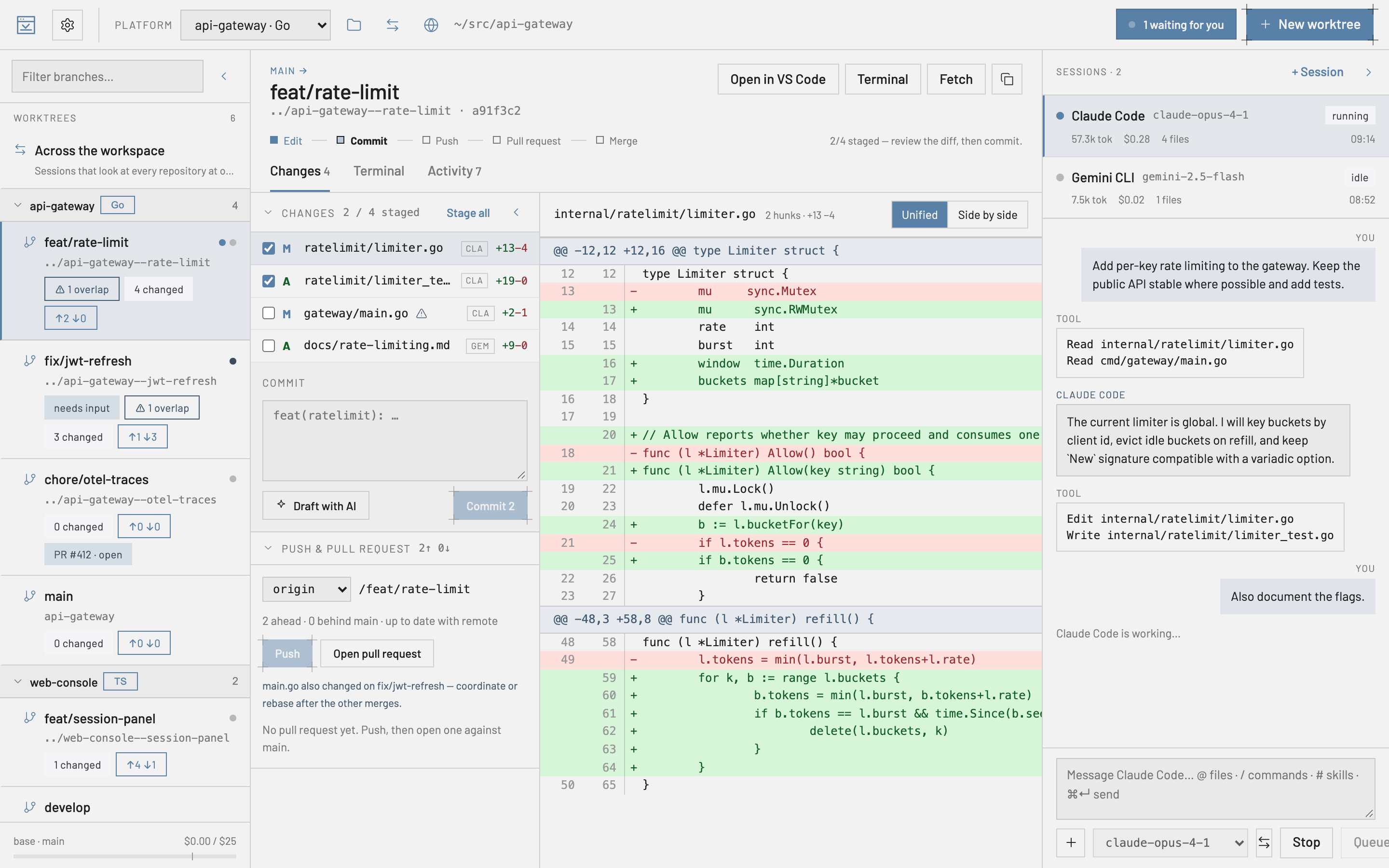
Making one. Open a second repository while one is already open and the app asks where it goes: add it to what you are working in, start a new workspace with both, or open it on its own. Escape means “on its own”. You can also start one from the start page with New workspace, and add or remove folders later from the workspaces button in the header. Removing a folder from a workspace never deletes anything — only the set changes.
From VS Code. If your team already keeps a .code-workspace file, Open workspace file… reads it: the same folders, in the same order, named the way VS Code names them. Comments and trailing commas in the file are fine. Folders that are not git repositories are kept — they just have no worktrees — and a folder that has gone missing is reported rather than quietly dropped. Save to file writes it back, leaving the parts the app does not use untouched, so the same file keeps working in both tools.
What the sidebar shows. Worktrees grouped by repository, each group foldable, with the filter matching a branch or a repository name so you can find a branch without remembering where it lives. A folded group still shows what is running inside it, and still says when a session is waiting. One repository shows no groups at all.
What the agents can see. A session still runs in its worktree — that is where git and every relative path belong — but it can read the workspace’s other folders too, so “where does this call end up?” can be answered from either side. A session that only reads is still only allowed to read, everywhere. There is also a row above the groups, Across the workspace, for sessions that belong to no single worktree: ask those the questions that span the whole stack. They have no branch, no changes and no terminal, because those belong to a worktree. A folder that has gone missing — moved, deleted or on a drive that is not plugged in — is left out, so sessions still start.
Settings. Three levels now: Global, the workspace, then a single repository. The default agent, the permission preset and the base branch are usually a property of the stack rather than of each repository in it, so set them once on the workspace; a repository that needs something different still overrides it. The scope selector in Settings picks the level, and a section that is not overriding says where its values are coming from.
The app remembers each workspace separately: come back to one and you land on the repository, worktree and panel layout you left it in.
Testing a worktree in the default one
The place to try a change is the repository's own folder — the default worktree — because that is where node_modules, .env, the build cache and the running dev server already are. The work happens in the other worktrees. Make current brings one of them into the default worktree: its commits, what it has not committed yet and its new files, on top of the default worktree's branch. From then on the header says, on every screen, what the default worktree is running — DEFAULT · feat-a + feat-b · 1 edit — and the sidebar tags the default worktree and the current ones.
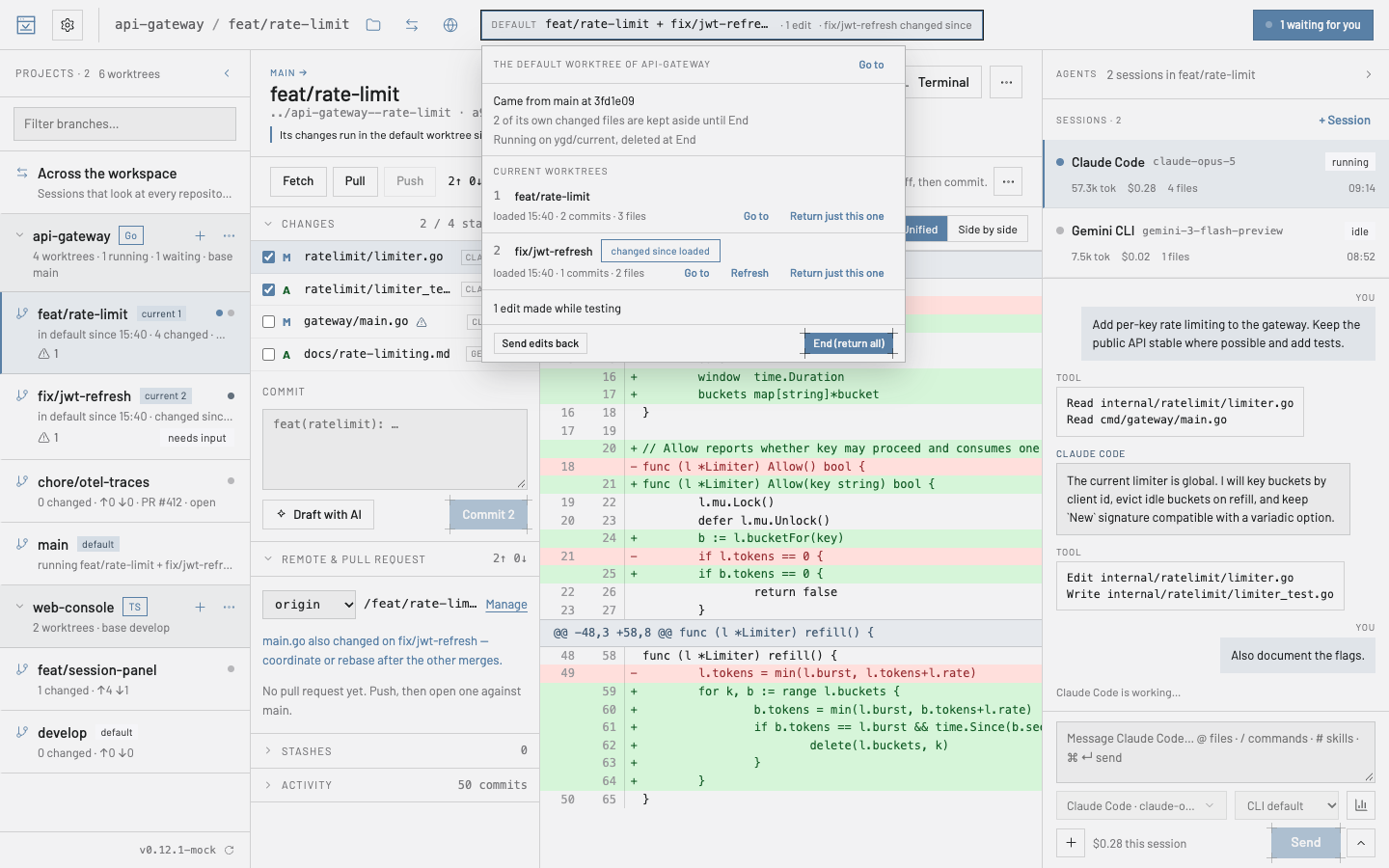
Swap puts another worktree in its place. Add stacks another one on top, to try two changes together; where both touch the same lines the load stops on a conflict in the default worktree, and for each file you keep the default side, take the incoming one, or edit it and mark it resolved — then Continue, or Abort back to what was running before.
Fixes made while testing go home. If you — or an agent in the default worktree — fix something while trying a change, Send edits back returns it to the worktree it belongs to, as uncommitted changes there, to review and commit; Undo takes it back until the next step. A file that belongs to several current worktrees, or to none, is asked about rather than guessed. Swap, Add, Refresh and End send the edits back first, so nothing done in the default worktree is lost to them. Send edits back, End and Undo this turn write files the way a checkout would — Git LFS, git-crypt and Windows line endings included; if a filter the repository needs is missing (git-lfs not installed, say), they stop with git’s message instead of leaving pointer files behind.
End gives the default worktree back exactly as it was: its branch, and its own changes, staged and not staged. Every step opens a short preview first — what comes in, what is kept aside, which files would conflict, and anything that stops it right now with the way out. You find them in the ··· menu of a worktree, on a right-click in the sidebar, in the header strip, and on ⌘⇧D / ⌘⇧E.
Settings › Git can refresh a current worktree by itself when its agent keeps working, and run a command after each load — pnpm install when pnpm-lock.yaml changed, say — in the default worktree's terminal, where you see it. Your own git stash is never touched. It needs git 2.40 or newer.
Getting around, and what it cost
⌘K opens the command palette: every action in the app — with its shortcut, or the reason it cannot run right now — plus your worktrees across the workspace, your sessions, the pages of Settings and your recent repositories. Start with > for actions, @ for worktrees, # for sessions; arrows and Enter do the rest.
What it cost. Settings › Budget has a Usage report: a bar per day split by agent, and what each repository and branch spent, over the last 7, 30 or 90 days or any dates you pick, with Export CSV. The figures are the budget’s own, so they always match the spend meter.
Agents and providers
ygd-editor does not talk to any AI service itself. It runs the command-line tools you already have — Claude Code, Codex, Gemini CLI, and also Antigravity CLI, Cursor CLI, OpenCode, Qwen Code and GitHub Copilot CLI — with your own accounts, so your usage, billing and data terms are exactly the ones you agreed with those providers.
Settings › AI providers connects each provider with your own account: Connect opens the provider’s sign-in page in your browser, and the card then shows the account, the plan and Switch account / Disconnect / Test connection. Codex and Gemini CLI are downloaded by the app the first time you pick them — the card says the version and the size, shows the progress, and Remove download takes it away again; if you have your own copy installed, the app uses that one. Claude Code’s licence does not allow shipping it, so its card offers Install Claude Code, which runs Anthropic’s official installer in the card’s terminal, into your home folder, without an administrator password. The default agent and model, and the permission preset, can differ per repository.
A card also says when the installed CLI is newer or older than the versions this release was checked with. Sessions still run; the note is there so that an incomplete report has an explanation. When Codex loses its connection and retries, the transcript shows a short Reconnecting… note rather than an error.
Antigravity, Cursor CLI, OpenCode, Qwen Code and Copilot CLI are not downloaded by the app: their cards run the vendor’s own installer, or show the command to run where the vendor has none. Not every agent reports what it used: Cursor reports neither tokens nor cost, so its cost reads unknown and no limit counts it.
Any other agent that speaks the Agent Client Protocol — Goose or Kimi CLI, say — can be added as the ACP agent: Settings › AI providers takes its ACP agent command and ACP agent arguments, as its documentation gives them. The app installs and signs in nothing for it: sign it in the way its documentation says, and Connect checks that it answers. If it refuses to start a session, the message gives its reason and its own advice — Goose, for one, says to run goose configure.
Permissions
Agents ask before doing things you have not pre-approved. Settings › Permissions has three presets — strict (read only), balanced (read and edit files, ask for anything else) and yolo (also run commands, use the web and push) — plus individual switches for reading, editing, running commands, web access, pushing and deleting. Whatever the preset, an agent can never delete without asking unless you turn that on.
When a request comes in, Approve and Deny answer once; Always allow remembers that tool for that worktree, and the rule goes away with the worktree.
When an agent asks for several things at once, the requests queue on the session card and in the inbox — 1 of 3 — and you answer them in order. Settings › Permissions › Allowed rules lists every “Always allow” by worktree, with the date it was added; Revoke takes effect at once, in a running session too. Auto-deny after (minutes, off by default) refuses a request nobody answers and tells the agent why. Codex and Gemini CLI cannot ask, so their agent bar shows the sandbox mode your switches give them; a click on it opens Settings › Permissions.
Sandbox. Settings › Permissions › Sandbox decides where agents’ commands may write. Worktree keeps their writes inside the worktree; No network also cuts them off the network and turns web access and pushes off. The strict preset uses No network, yolo uses Worktree, and balanced leaves it off. Agents with a sandbox of their own hold their commands to it; the others run no commands, or ask before each one, and the agent bar says which. Under the sandbox Claude Code can still commit in a linked worktree; Codex cannot, so commit from the app. The sandbox also keeps agents out of the parts of .git that would point the app’s own git elsewhere, and out of a rebase’s state, so an agent’s own git rebase, cherry-pick and revert fail under it: rebase from the app instead, with Update from base. For the same reason the app’s own git will not run in a main worktree whose .git holds a commondir file, which git never writes there: remove the file if you did not put it there yourself.
Some commands are only ever remembered exactly as written — deleting cluster resources, cloud operations that open access or run code, SQL statements — so approving one never approves the next. Some are never remembered at all and ask every time: terraform, tofu or terragrunt apply or destroy with -auto-approve, and any kubectl, oc, aws, docker or helm command whose options name a kubeconfig, a certificate or a config file. Their prompt offers no Always allow and says why in a line under its buttons. Options in front of a command — docker --context …, say — do not hide what it does.
Notifications, inbox and budget
Settings › Notifications chooses when the app pings you: when a session is waiting, when one finishes, and when a pull request changes — checks done, approved, changes requested, merged. Pull requests are watched for every worktree in the background, so you hear about them within about five minutes even for one you are not looking at; a merge found that way keeps its offer to remove the worktree until you answer it. Notifications only show while the window is not in front, a click on one jumps to the session, and the dock or taskbar badge can count waiting sessions.
The header inbox has two tabs. Needs input is the sessions waiting on you. Activity is everything the app has told you — finished turns, pull request changes, failures with git’s full output, the toasts you might have missed — and a click on a row takes you to its session or worktree. Unread rows are counted, Mark all read clears them, and the latest 200 are kept across restarts.
The budget bar at the bottom of the left panel is today’s spend across every session. When an agent reports its own cost, that is the figure; otherwise its tokens are priced at the model’s list price, and the rates in Settings › Budget are only for models that have none. The usage popover and a session’s cost tooltip say which it is. Settings › Budget also sets a daily and a per-session limit and a warning threshold; with Pause sessions at the limit on, reaching the daily limit also stops turns that are still running, and a toast says how many.
Settings
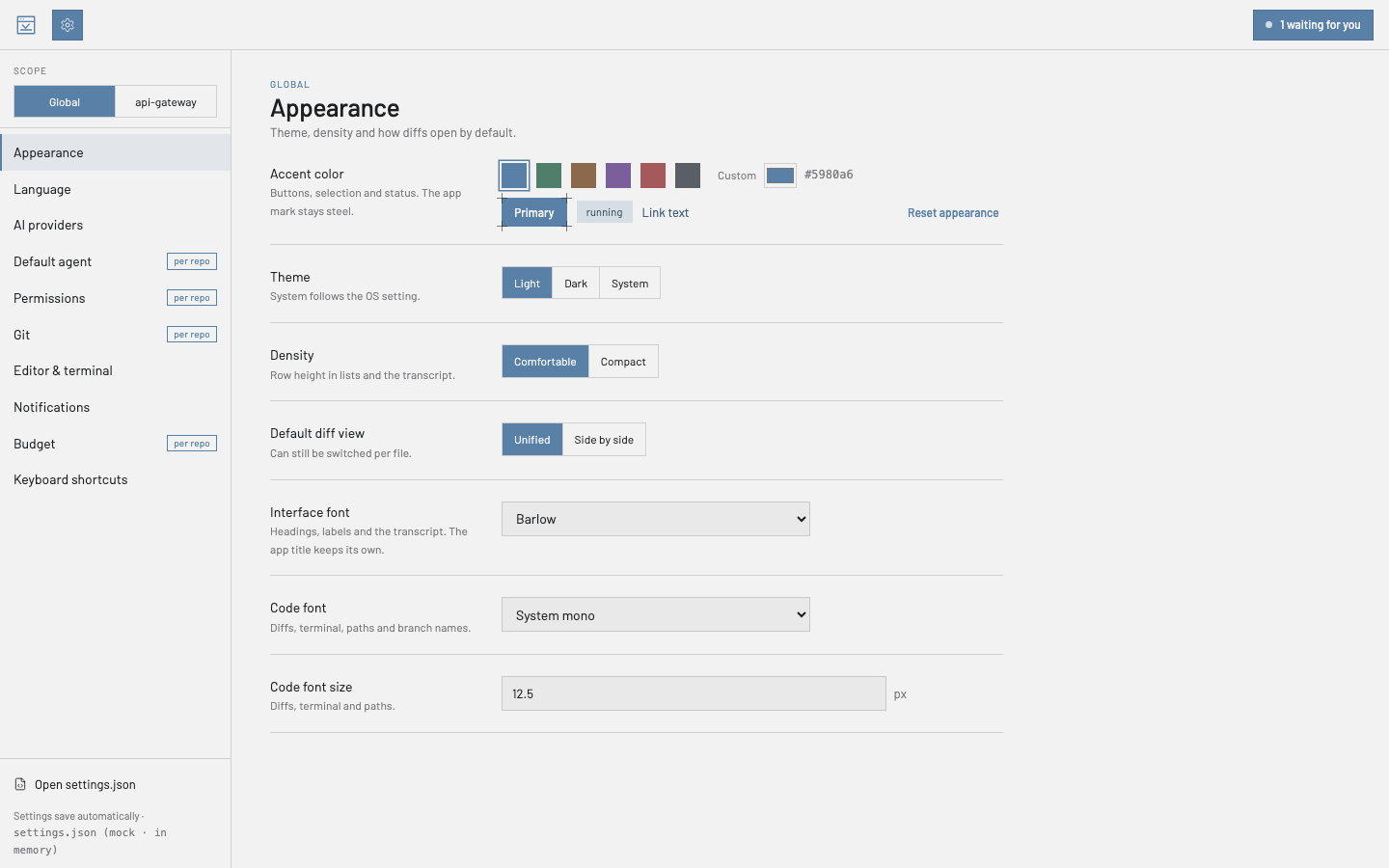
Settings (⌘,) are grouped by topic. Appearance sets theme, accent colour, density and fonts; Language switches the interface between English, Spanish, Italian, Polish, French, German and Turkish. Several sections carry a per repo badge: with a repository selected at the top you can override those for that repository only. Dates, times, numbers and costs follow the language you choose, not the system’s.
Everything saves automatically to settings.json in the app’s folder in your home directory; Open settings.json edits the raw file with validation, and the header shows when it was last written. The file names its schema, so an editor such as VS Code completes and checks it when you edit it by hand. Every save keeps the previous file as settings.json.bak; if the file is ever damaged, the app runs on that copy and tells you. An older version of the app never overwrites a file a newer one wrote: it runs on defaults and refuses to save settings until you update again. Workspaces, the inbox and the session lists are kept the same way.
Search settings, at the top, finds any row by what it is called or what it does — type “budget limit” and Budget opens with the cursor in Daily limit; ⌘K finds settings too. A row you have changed shows a dot and its own Reset. Number fields refuse a value the app could not use, say why, and keep the saved one.
Export settings profile, in Settings › About & updates, writes your settings, the per-repository and per-workspace ones and your workspaces to one file, shown to you before it is saved, to set up another computer the same way; Import settings profile reads it back. Worktree variables, MCP server secrets and “Always allow” rules stay out unless you tick them. Before an import turns on automatic CI fixes, or changes the budget limits or an agent’s price rates, it asks.
Small windows and the keyboard
Small windows. The window goes down to 900 × 680, so the app fits beside an editor on a 13- or 14-inch laptop. Narrower than about 1,180 pixels the sessions panel folds into a rail, and narrower than about 1,000 the worktree list does too. Click a rail to open its panel over the middle; Escape, or a click beside it, puts it away. Your saved layout is left alone: widen the window and the panels are back as they were.
From the keyboard. Each list — worktrees, sessions, terminal tabs, Settings sections, recent repositories — is a single Tab stop. ↑ and ↓ (← and → on terminal tabs), Home and End move along it, Enter or Space picks a row, the Menu key or Shift+F10 opens the row’s menu, and F2 renames a terminal tab.
Questions are the app’s own. Anything that needs a yes — discarding, dropping a stash, merging a pull request — asks in a dialog of the app, in your language, with the action written on the button; Escape means no. Clone, Hand off and Remotes ask before throwing away what you have typed in them.
Layouts. The button at the end of the terminal tabs docks the terminal under the diff, so a test run stays in sight while you stage. The command palette switches between layouts — Review for a large diff, Agent for a large transcript, or the default panels — and Focus mode (⌘.) hides everything but the middle. A transcript can also open in a window of its own — Open in its own window, in a session’s right-click menu — where a tool’s prompt can be answered with Approve or Deny; it reopens where you last closed it.
Accessibility. Settings › Accessibility has Interface scale (up to 150%), Increased contrast, Reduce motion, Always show focus rings and Announce to screen readers. The system’s own contrast and motion settings are followed too.
Updates
Shortly after launch, and every six hours while it stays open, the app checks this site’s releases and tells you when there is a new version. One click downloads it; with Settings › About & updates › Download updates automatically on, it downloads as soon as it is found. Nothing installs until you choose: Restart & update now, Restart later — it then installs when you quit — or Discard.
An update installs only if the release’s signed checksums list it, checked against the certificate built into the app. If they do not, the app says the update is not signed by the project and installs nothing. Settings › About & updates also has Offer updates, which turns the checks off, and Check for updates with the time of the last check.
The first launch after an update says which version you are on, and its What’s new opens the release notes inside the app. Settings › About & updates and the command palette open them too.
Settings › About & updates › Update channel can be set to Beta to get prereleases before everyone else; they are signed and checked like any update. Going back to Stable never installs an older version: you stay on the beta until a stable release is newer.
From the terminal: ygd
Install command line tool… — in the app menu on macOS, in the File menu on Windows and Linux — puts the ygd command on your PATH. ygd open [folder] opens a repository in the app. ygd run --task "…" starts an agent on a task in a new worktree; --agent, --model, --try 2 and --plan work as in the New worktree dialog. ygd doctor reports on git, the PATH and the agent CLIs without opening a window. With the app closed, open and run start it.
ygd:// links do the same from a browser or a script. A repository the app has not opened before is asked about first, and sandboxed agents cannot start ygd run on their own. From the AppImage the command cannot be installed; use the Debian / Ubuntu package for it.
Keyboard shortcuts
| ⌘O | Open repository |
| ⇧⌘C | Clone repository |
| ⌘N | New worktree |
| ⌘K | Command palette |
| ⌘, | Settings |
| ⌘↵ | Send the prompt |
| ⌘F | Find in the terminal |
| ⌘⇧] ⌘⇧[ | Next / previous terminal |
| ⇧N | Next unviewed file |
| ⌘⇧O | Mission control |
| ⌘⇧B | Task board |
| ⌘⇧T | Tidy commits |
| ⌘. | Focus mode |
On Windows and Linux read ⌘ as Ctrl — except in the terminal, where find is Ctrl+Shift+F and Ctrl+PageDown / Ctrl+PageUp switch terminals. Most shortcuts can be changed under Settings › Keyboard shortcuts.
When something goes wrong
macOS says it could not verify the app (Move to Trash / Done). Click Done, then System Settings › Privacy & Security › scroll to Security › Open Anyway, and confirm with your password. On macOS 14 or older, right-click › Open does it in one step. If it still refuses, in Terminal: xattr -d com.apple.quarantine /Applications/ygd-editor.app. If it says the app is damaged, the download was corrupted: download it again and compare it against SHA256SUMS.txt.
Avoiding the prompt altogether. Install from Terminal instead: curl -fsSL https://mhguitarte.github.io/ygd-editor/install.sh | bash. It checks the download the way macOS would have and puts the app in Applications; see the download page.
Windows blocks the installer. SmartScreen › More info › Run anyway. The publisher should read ygd-editor release signing.
The AppImage does not start. Run it with --appimage-extract-and-run, or install libfuse2.
A provider shows “Not installed”. Codex and Gemini CLI are downloaded on request: click Download on the card, and if the download fails the card says why (offline, or a file that did not match its checksum and was discarded). For Claude Code, click Install Claude Code on its card; if you installed it yourself, open a terminal, check that claude --version works, then Settings › AI providers › Rescan.
Something is off with git, the PATH or an agent. If you installed the ygd command, ygd doctor in a terminal says what the app sees, even when the app will not start.
Git errors. The app explains the usual ones in one sentence — credentials, a remote that moved on, a lock file, a dirty tree, conflicts — and keeps the full output in the worktree terminal.
No update appears. Check Settings › About & updates › Offer updates, then Check for updates; the app needs to reach github.com.
An update was refused as not signed by the project. Nothing was installed. Download the installer from All versions and check it as Is my download genuine? explains.
Settings will not save after going back to an older version. The older app leaves files written by the newer one alone, runs on defaults and says which file it is. Update again and everything is where you left it.
Reporting a problem. Settings › Diagnostics shows what a bug report needs: the versions of the app, git and each agent CLI, the PATH agents get, the running agent processes and a live log you can filter. Log levels sets how much is logged — info, git=debug logs git in detail. Prepare bundle… gathers it all in a zip and lists every file for you to read before Save zip…: tokens and API keys are masked, what you typed to agents and terminals is left out, and your home folder shows as ~. Attach it to an issue with what you did, what you expected and what happened.
The app crashed. A record of it stays on your computer, and nothing is uploaded. The next launch says so, and Report a bug… in the Help menu opens a new issue in your browser with the app’s version, your system and the latest crash filled in — no path, prompt, setting or token. You read it and decide whether to send it.
Uninstalling
Before you remove it — both optional. If a worktree is current in the default one, End it, so the default worktree has its own branch and changes back. To sign out of a provider, use Disconnect on its card in Settings › AI providers: the sign-ins belong to Claude Code, Codex and Gemini CLI rather than to the app, so removing the app does not end them. If you installed the ygd command, Remove it in Settings › Command line. Then quit ygd-editor.
macOS. Drag ygd-editor from Applications to the Trash — from ~/Applications if the Terminal install put it there.
Windows. Settings › Apps › Installed apps › ygd-editor › Uninstall, or Control Panel › Programs and Features.
Linux. Delete the AppImage file. For the Debian / Ubuntu package: sudo apt remove ygd-editor.
What stays behind. Your settings, workspaces, session history and the Codex and Gemini CLI downloads live in the .ygd-editor folder in your home directory, and uninstalling keeps them, so a reinstall picks up where you left off. To remove them too, with the app’s caches, run this after uninstalling:
macOS:
rm -rf ~/.ygd-editor ~/Library/Application\ Support/ygd-editor ~/Library/Caches/ygd-editor-updater ~/Library/Caches/com.mhguitarte.ygd-editor* ~/Library/HTTPStorages/com.mhguitarte.ygd-editor ~/Library/Preferences/com.mhguitarte.ygd-editor.plist
Windows (PowerShell):
Remove-Item -Recurse -Force -ErrorAction SilentlyContinue "$env:USERPROFILE\.ygd-editor", "$env:APPDATA\ygd-editor", "$env:LOCALAPPDATA\ygd-editor-updater"
Linux:
rm -rf ~/.ygd-editor ~/.config/ygd-editor ~/.cache/ygd-editor-updater
What is never touched. Your repositories and the worktrees you created are ordinary git folders and stay where they are; git worktree remove <folder> removes one. If the app installed Claude Code for you, it stays in your home folder — Anthropic’s documentation explains how to remove it.
Privacy and security
Everything runs on your computer. The app itself connects to the internet for two things: checking this site’s releases for updates, and once a day fetching the public list of models and their prices from models.dev. Agents talk to their providers with your accounts; git talks to your remotes with your credentials. Provider tokens the app keeps are stored in the operating system’s keychain. The interface runs sandboxed, every request that names a path is checked against the repositories you actually opened, and no command is ever built from a shell string. The diagnostics bundle and crash reports are saved on your computer and sent nowhere. Phone notifications, when you turn them on, send only which agent needs you on which branch, or which pull request’s checks failed.
To check that a download is really ours, see Is my download genuine? on the download page.